Paystack
Complete guide to setting up and configuring Paystack payment processing for your CheckoutJoy account in South Africa, Nigeria, Ghana and Ivory Coast
Overview
Paystack is a leading payment solution provider that enables businesses to seamlessly accept credit and debit card payments online. With robust security features and a user-friendly interface, Paystack helps merchants boost their sales while providing customers with a smooth checkout experience. Paystack currently serves businesses in South Africa, Nigeria, Ghana, and Ivory Coast.
Quick Setup Guide
Watch this short video to get your Paystack integration up and running in minutes:
Supported Payment Options
With Paystack integration, CheckoutJoy enables you to offer flexible payment options to your customers:
- One-time payments - Perfect for single product purchases
- Multiple payments - Split payments into installments for higher-priced offerings
- Subscriptions - Recurring billing for membership and subscription products
Features not supported by Paystack
While Paystack offers comprehensive payment solutions, there are a few limitations to be aware of:
- Free trials - Currently, Paystack does not support free trial periods for subscriptions
Adding your account details
Setting up your Paystack integration takes just a few simple steps:
In your CheckoutJoy dashboard:
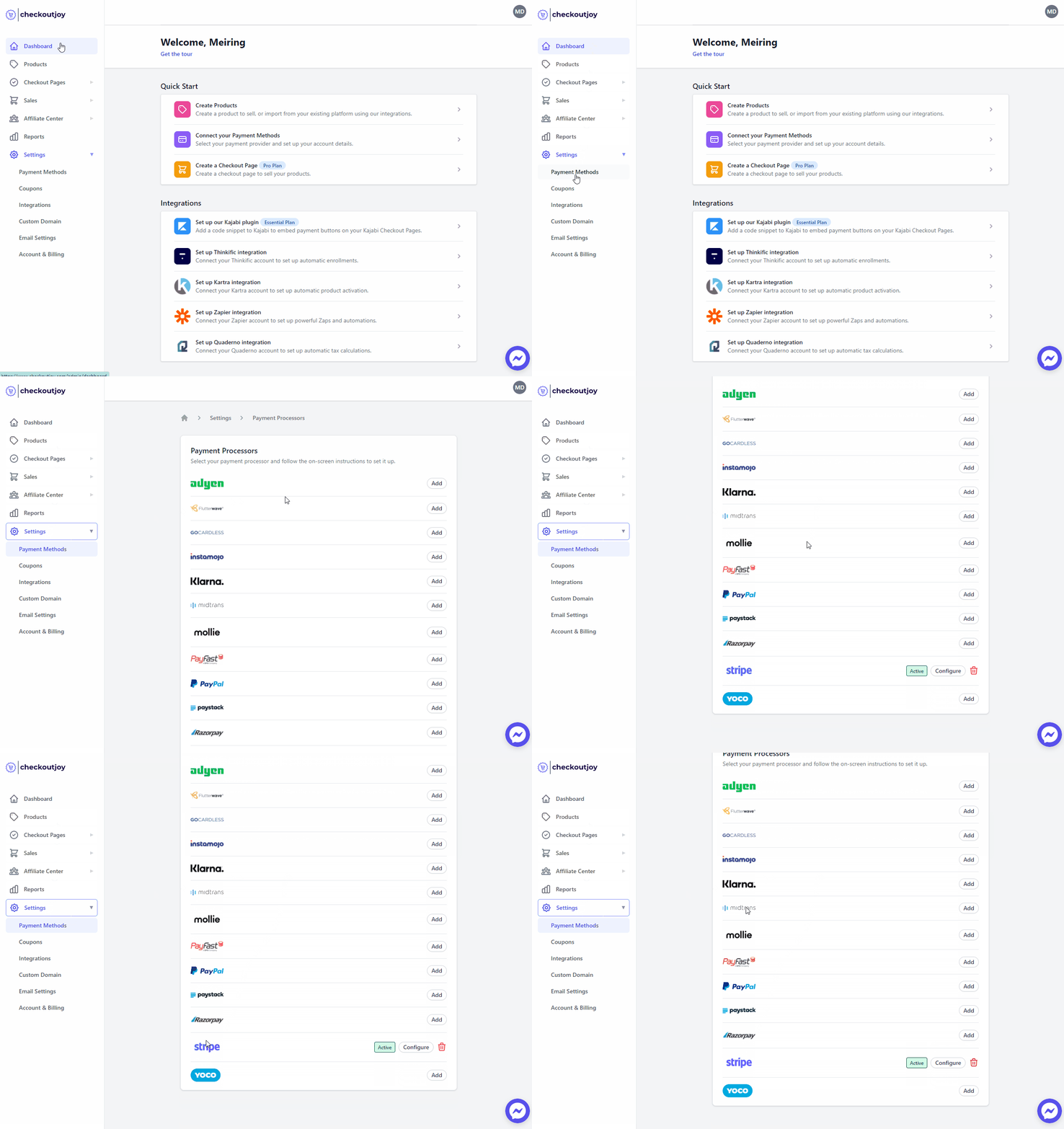
- Navigate to Settings > Payment Methods
- Select Paystack from the list of processors and click on Add
Finding your API credentials
To connect your Paystack account, you'll need to access your API keys:
- Log into your Paystack dashboard
- Navigate to Settings > API keys & Webhooks
- Your keys are listed in the API Configuration - Live Mode section
- Copy both your Secret Key and Public Key for the next step

Configure your Webhooks
Webhooks are essential for real-time communication between Paystack and CheckoutJoy. They ensure your customers get immediate access to your products after payment and allow CheckoutJoy to properly manage subscriptions and refunds.
To set up webhooks:
- Log into your Paystack dashboard
- Navigate to Settings > API keys & Webhooks
- Locate the Webhook URL section
- Paste the URL below into the Live Webhook URL field
- Save your changes
| Setting | Value |
|---|---|
| Endpoint URL | https://api.checkoutjoy.com/v1/notify?p=Paystack |
Subscriptions and Payment Plans
Boost your revenue with recurring payments! CheckoutJoy seamlessly integrates with Paystack to support both subscription and payment plan options for your offers.
How it works:
- When you create an offer in CheckoutJoy with either Subscription or Multiple Payments billing type
- CheckoutJoy automatically creates the necessary subscription or payment plan in your Paystack account
- Your customers enjoy a smooth checkout experience
- You receive payments automatically according to the schedule you've set
Important: Complete your Paystack payment method setup and API configuration before creating subscription or payment plan offers in CheckoutJoy.
Currency behavior
Paystack supports the local currency of each country it operates in (ZAR in South Africa, NGN in Nigeria, GHS in Ghana, XOF in Ivory Coast). The buyer is always charged in the merchant's local currency — Paystack will not settle in USD/EUR even if the product is priced that way.
If you price a product in USD on a Paystack-only checkout, CheckoutJoy will display the USD figure for context but Paystack will convert and charge the buyer's card in the local currency (for example, a $50 product checked out via a South African Paystack account is charged as the ZAR equivalent on the buyer's card). The buyer's bank may apply its own conversion fee on the card statement.
For multi-currency support across regions, combine Paystack with another processor (such as PayPal for international USD/EUR buyers) and let CheckoutJoy route the buyer to the right processor based on geo.
Frequently asked questions
Why are my South African card customers being declined on Paystack?
South African card-issuing banks periodically tighten 3DS and risk rules for processors that route through international rails. Decline rates can spike for SA buyers as a result. The most reliable workaround is to also offer PayFast on the same checkout — PayFast is a local SA acquirer and tends to clear SA cards more reliably than Paystack or Stripe in those periods. CheckoutJoy can show both on the same checkout.
Does Paystack work for selling to customers outside the supported countries?
Paystack settles in the local currency of its supported countries. If you're a South African Paystack merchant and you want to sell to a buyer in the US, the buyer's card will be charged in ZAR and converted by their bank. For a smoother international experience, run PayPal or Stripe alongside Paystack and route international buyers there.
Can I do a free trial with Paystack?
No — Paystack does not support trial periods on subscriptions. If you need a free-trial flow, use Stripe or PayPal.
Buyer gets a 400 error on "Continue to Payment" with the embedded widget
Paystack rejects a transaction when the buyer's email at checkout matches the email on your own Paystack merchant account. If you're testing your own checkout, use a different email address than the one tied to your Paystack account.
Paystack shows the payment as successful, but CheckoutJoy marks it abandoned and the buyer never got LMS access
The Paystack → CheckoutJoy webhook isn't configured (or isn't firing). Without the webhook, CheckoutJoy never learns the payment completed, so the post-purchase automation never runs. Walk through the self-service webhook diagnostic in Troubleshooting to fix the webhook, then any already-paid abandoned orders can be reconciled.
Buyer paid on a payment plan but only the first installment was charged
This is almost always a Paystack-side Plan configuration issue, not a CheckoutJoy bug. Open the Paystack dashboard → Subscriptions / Plans and find the Plan that should be running the recurring charges:
- If
number of paymentsshows0(instead of your intended count, e.g. 5 or 10), the Plan wasn't created with a fixed instalment count. Fix the Plan in Paystack. - After the first charge, recurring instalments are scheduled and run by Paystack itself, not by CheckoutJoy. CheckoutJoy's job is to create the Plan and start the first payment; the rest is Paystack's responsibility.
If a payment plan was set up correctly but recurring still isn't firing, capture the Plan ID from Paystack and contact Paystack support.
Buyer paid on Paystack but Kajabi never granted the offer
If the order completed in CheckoutJoy (not stuck in Pending) but the Kajabi grant failed, check the order's activation log. A frequent cause is Kajabi's name validation rejecting the buyer's name. Kajabi only accepts names containing letters, spaces, apostrophes, hyphens, periods, or numbers — anything else (accents handled inconsistently, emoji, certain punctuation) returns a Validation failed: Name must contain only letters... error.
To recover the order: edit the buyer's name on the order to a Kajabi-acceptable form and replay the activation from the order page. To prevent it going forward, sanitise/restrict the name field on your checkout.