PayFast
This guide will walk through setting up your CheckoutJoy account to take payments using your PayFast account.
Using CheckoutJoy, you can sell your courses on any platform like Kajabi, Thinkific, HighLevel or Kartra while accepting payments via PayFast.
Supported Payment Options
- One-time payments
- Multiple payments
- Subscriptions
Required Setup
- You need a valid PayFast account with a Merchant ID and Merchant Key provided by PayFast
- You need to set up your CheckoutJoy account
Tutorials
How to use PayFast with HighLevel
How to use PayFast with Thinkific
How to use PayFast to sell Calendly Events
How to use PayFast with Kajabi
Adding your account details
In the CheckoutJoy dashboard
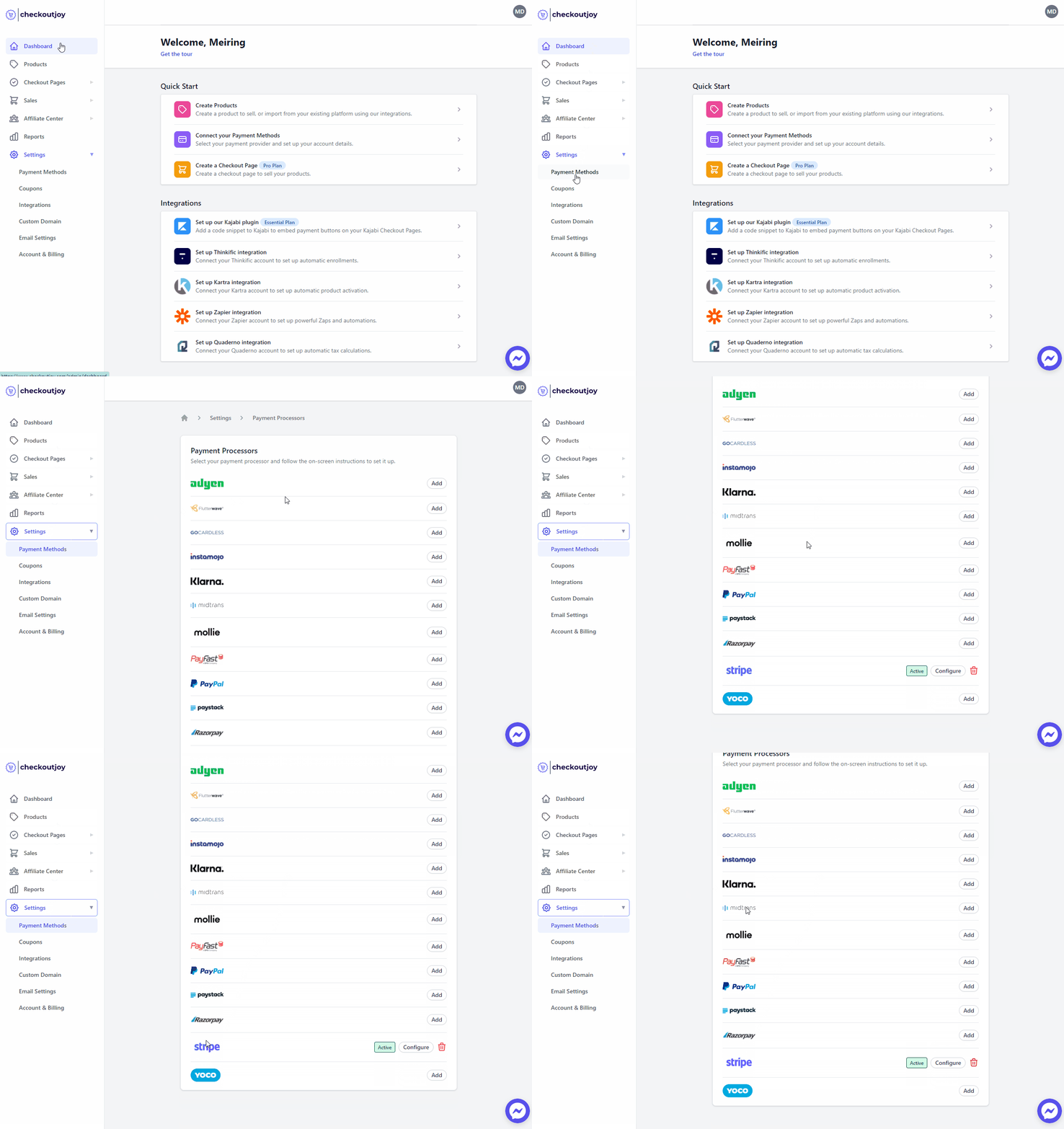
- Navigate to Settings > Payment Methods
- Select your payment processor and click on Add
Finding your Merchant ID and Merchant Key
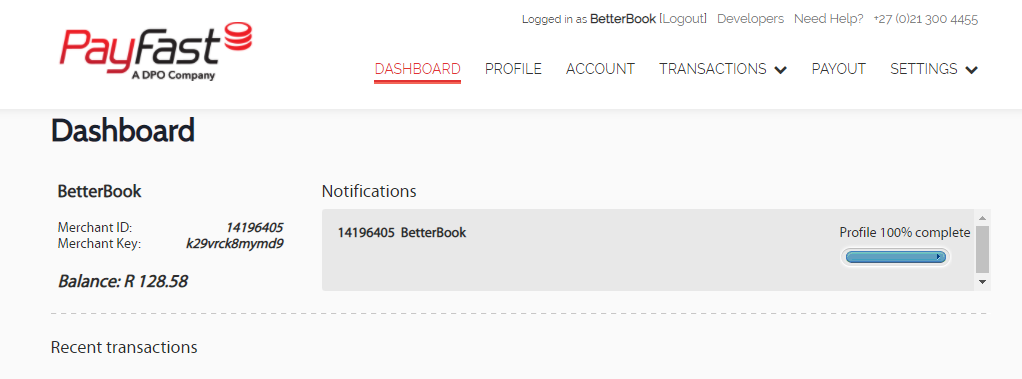
When you sign up with PayFast, you get unique codes that you must use when initiating payments so that PayFast knows where to allocate the money to. These unique codes are referred to as your Merchant ID and Merchant Key.
If you log into to your PayFast dashboard, you will find your Merchant ID and Merchant Key displayed there.
Subscription Intervals
PayFast processes subscriptions on specific intervals. The following intervals are supported:
- Weekly
- Monthly
- Quarterly
- Biannually
- Annually
To set up a Quarterly or Biannually subscription, set the Billing Period to "Month" and the Billing Interval to 3 or 6.
Things to keep in mind
Please note the following:
-
You can only charge the customer in ZAR - PayFast is only allowed to charge customers in ZAR, which means the checkout page will only display the ZAR amount to the customer. If your Kajabi offer is in a different currency, then CheckoutJoy will convert the total to ZAR when initiating the transaction. The latest available currency exchange rate is used at the time of the transaction.
-
USD subscriptions are not supported by PayFast. PayFast can process the first payment of a USD-priced multiple-payment or subscription plan (converting the total to ZAR at that moment), but subsequent installments will be billed in the same numeric ZAR amount — they will not re-convert from USD each cycle. For example, a $109/month plan will charge ~R2,000 on the first cycle (the USD→ZAR conversion at that point) and then ~R109 on every cycle after. If you need true USD recurring billing, use Stripe, PayPal or another processor that supports multi-currency recurring. PayFast itself confirms this limitation directly — it applies to all PayFast subscriptions, not only CheckoutJoy's integration.
-
Currency-conversion fees are charged by PayFast or the buyer's bank — when an international buyer pays a ZAR amount on a card denominated in another currency, either PayFast's Dynamic Currency Conversion or the buyer's own bank will add a small conversion fee (typically a few percent). CheckoutJoy does not add or control this charge. It appears on the buyer's statement, not in your PayFast settlement. Check the PayFast dashboard's FX / DCC settings if you want to influence how cross-currency transactions are handled.
-
PayFast standard fees on large amounts — PayFast's percentage fee (~3.5%) can be significant on high-ticket items. Factor this into your pricing for premium products.
Frequently asked questions
My customer got a 505 / generic error page on the PayFast checkout
Two common causes, in order of likelihood:
- The buyer's email matches the merchant account email. PayFast can refuse a transaction where the buyer's email is the same as the email tied to your own PayFast merchant account. Ask the buyer to use a different email address, or use your own alternate email for the test.
- Transient PayFast outage. Brief PayFast errors do occur; if a previously working link starts returning 505 for unrelated buyers, retry a few hours later before assuming a configuration issue.
If neither resolves the issue, contact CheckoutJoy support with the transaction reference.
A customer's PayFast subscription failed — how do they update their card?
The fastest path is the update-card link from the PayFast dashboard:
- Log into the merchant's PayFast dashboard and find the subscription record.
- Open the subscription → View details.
- Click Copy Link to update card — this is a secure PayFast-hosted link.
- Send that link to the buyer. Once they enter the new card, the subscription stays active and resumes on the existing schedule.
This is preferred over cancelling and re-checking out, because the subscription token, original price and schedule are preserved.
Can I set up PayFast before my website is live?
Yes. You need the Merchant ID, Merchant Key and Passphrase from your PayFast dashboard to configure the processor in CheckoutJoy. You can do this and test checkouts against PayFast's sandbox before going live. If your CheckoutJoy trial is running short while you're still waiting on PayFast approval or web-development work, ask support to restart the trial when you're ready.
A buyer says PayFast is blocking their IP — does it really do that?
No. PayFast does not block payments by IP, and neither does CheckoutJoy. If a buyer reports that, the failure is from something else: card decline, 3DS authentication failure, browser issue, network drop, or the same-email-as-merchant case above. Ask the buyer for the exact error message PayFast showed — that's the signal, not "my IP was blocked."
PayFast payments have been failing for hours — is it CheckoutJoy or PayFast?
Once CheckoutJoy creates the transaction, the buyer has already been redirected to PayFast. Anything that happens from that point is on the PayFast side or the buyer's environment. Quick diagnosis:
- Check PayFast's status page and social channels for outage notices.
- Look at your CheckoutJoy orders list — if transactions are being created but stuck in pending, the redirect succeeded and the issue is the PayFast confirmation/callback path.
- Try a small live test yourself.
For durable resilience against PayFast outages, add Paystack as a secondary processor on the same checkout. Both clear ZAR locally and buyers can switch if one is down.
How does it work?
The CheckoutJoy widget will embed your PayFast payment button (linked to your PayFast account) onto your Kajabi checkout pages as an alternative payment option to PayPal. Your customers will be able to pay by Credit/Debit card or any of the available payment methods supported by PayFast.
When your customers select the PayFast payment option, the CheckoutJoy widget will initiate the secure transaction with PayFast, and direct the customer to the PayFast checkout page in a browser popup window. The transaction details, pricing and customer details are sent as well.
After a successful checkout
After the customer has completed the checkout (and the payment was confirmed), CheckoutJoy will automatically add the customer to your Kajabi customer base and activate the customer's access to the offer on Kajabi. Your customer will be redirected to your Offer Thank You page that is configured in Kajabi
When users are granted an offer by CheckoutJoy, they will receive a "member welcome email" from Kajabi which contains the system-generated password for your membership site. Take note that this email will only be sent to NEW members, and only once. They will also receive an "offer grant confirmation email" from Kajabi.
If an offer is granted to an existing member, then she/he will continue using her/his existing account. They will only receive the "offer grant confirmation email" and not the member welcome email.
Limitations with the Integration
Combining Product Types on Checkout
PayFast doesn't support combining once-off payments with subscription payments, which means that it's not possible to use order bumps, or carts with mixed product types. The products should either all be once-off products, or all subscription products with the same billing cycles.
Currency
PayFast only supports ZAR payments. If your offer is in a different currency, then we'll will convert the total to ZAR when initiating the transaction. The latest available currency exchange rate is used at the time of the transaction.
Note: PayFast has a multi-currency feature that allows the customer to select a different currency on the PayFast payment page..
Tutorials and Walkthrough Guides
Check out the following video tutorials on how to set up and use PayFast with different platforms.