Klarna
Setting up Kajabi to take payments using your Klarna account
Klarna
This guide will walk through setting up Kajabi to take payments using your Klarna account. Using the CheckoutJoy integration, you can take payments using your Klarna account directly from your Kajabi checkout pages.
Supported Payment Options
- One-time payments
- Multiple payments
- Subscriptions
Only once-off offer purchases are supported at the moment. If you want to use Klarna for subscriptions or the multiple payment model, please reach out to us.
Adding your account details
In the CheckoutJoy dashboard
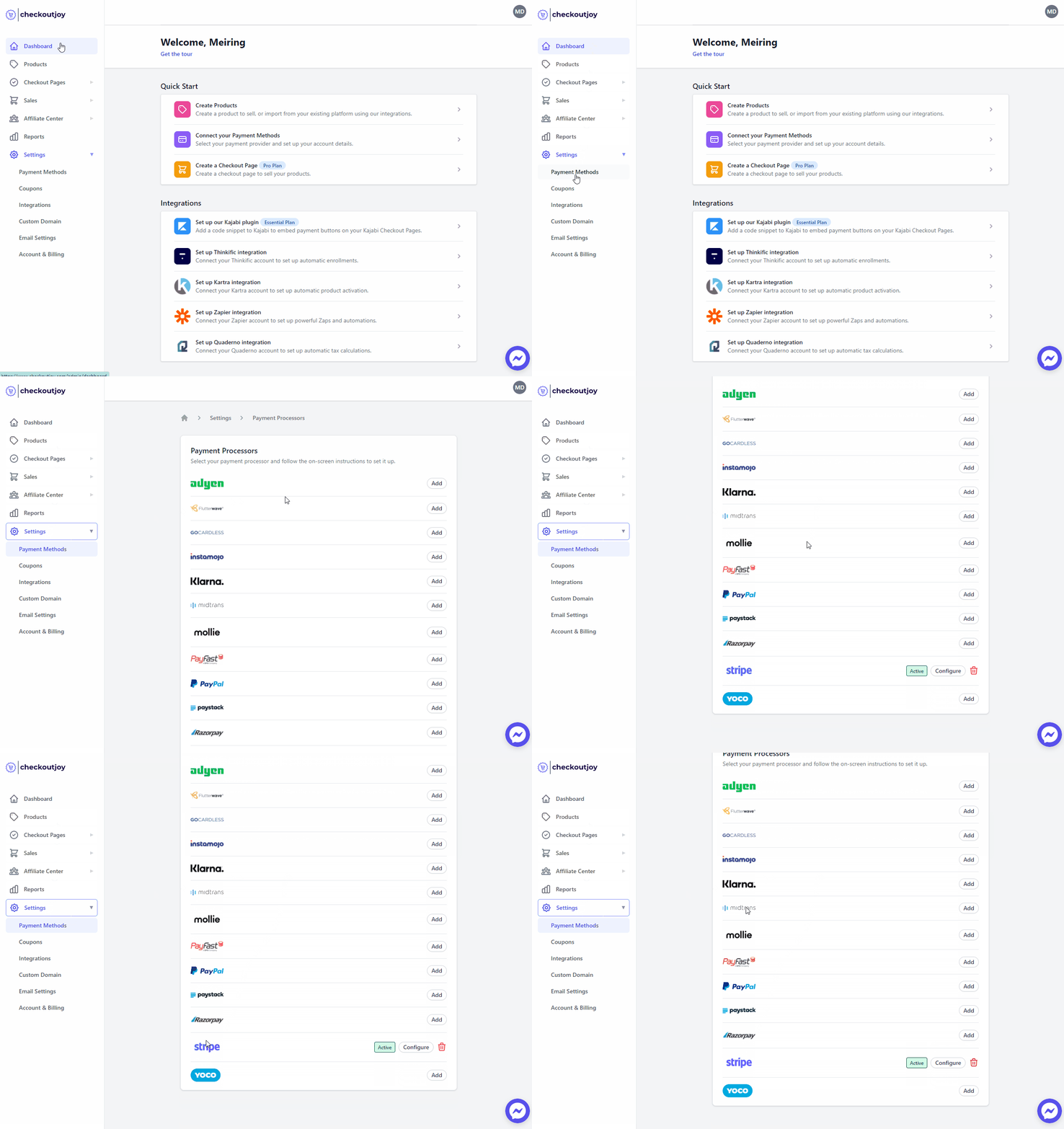
- Navigate to Settings > Payment Methods
- Select your payment processor and click on Add
Finding your API Username and Password
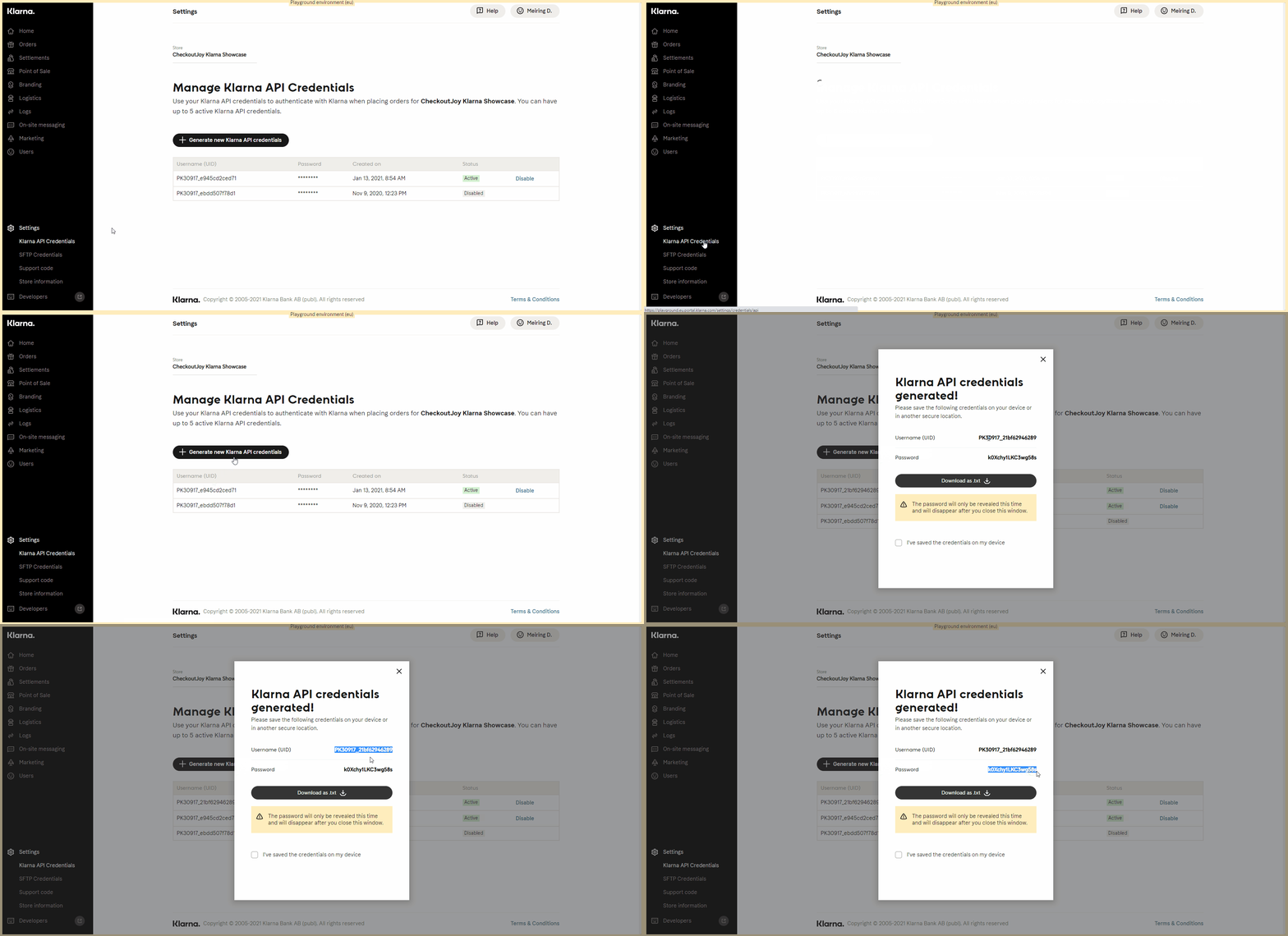
Your Klarna API key can be found in your Klarna dashboard under Settings > Klarna API Credentials.
Session Type
Klarna provides two ways of handling a purchase:
- Checkout Sessions
- Payment Sessions
You need to select the session type that is enabled for your account. This will depend on your Klarna account is set up and what features and payment methods you have enabled for your account.
You may need to go through an onboarding process with Klarna to activate your API for the Payments API.
Setting up Klarna as a payment method on CheckoutJoy
To add Klarna as a payment method on CheckoutJoy, visit your CheckoutJoy account and
select Payment Methods from the main menu.
Under AVAILABLE PAYMENT PROCESSORS - select Klarna.
Order status — pending vs completed
Klarna sends its events in a sequence: typically payment_authorized / in_progress → then payment_succeeded / completed. CheckoutJoy marks the order as completed only when the final "completed" event arrives — that's what fires downstream automations (offer grants, tag assignment, order-confirmation emails, etc.).
If an order is stuck in Pending, the first thing to check is whether webhooks are reaching CheckoutJoy at all — most pending-order issues are simple webhook misconfigurations in the processor dashboard, not Klarna-specific. See the self-service webhook diagnostic in Troubleshooting before assuming it's a Klarna quirk.
Occasionally Klarna will only send the in_progress event without a follow-up completed event, even when the payment has succeeded in the Klarna dashboard. When that happens, the CheckoutJoy order sits in Pending and automations do not fire.
How to reconcile a stuck "Pending" Klarna order
- Open the order in your CheckoutJoy dashboard and copy the payment reference.
- In the Klarna merchant dashboard, find the same transaction and confirm the actual completion timestamp.
- Send the reference to CheckoutJoy support — we can manually transition the order to Completed, which replays the automations.
This is a Klarna-side flakiness pattern (not a CheckoutJoy bug) — there's no merchant-side configuration that prevents it, but reconciliation is straightforward.
Klarna API host migration to Kustom
Klarna has been migrating its API hosts to Kustom (its new platform brand for parts of the API). Merchants on CheckoutJoy do not need to do anything for this migration — CheckoutJoy handles it for you. If you're running a custom direct-to-Klarna integration alongside CheckoutJoy, you'll need to update those direct connections yourself before Klarna's cutover.
Frequently asked questions
What payment options does Klarna show to my buyer?
Klarna decides what to show based on the buyer's country, currency and Klarna's own underwriting. CheckoutJoy passes the order details and Klarna chooses between Pay Now, Pay in 30 days, and Pay in installments. You cannot force a specific Klarna method.
Does Klarna work for subscriptions?
Not currently through CheckoutJoy — only one-time payments are supported. For subscriptions on EU-friendly methods, use SEPA Direct Debit through Mollie or Stripe.