PayPal
Setting up your PayPal account to accept payments on CheckoutJoy
Intro
This guide will walk through setting up you PayPal account to take payments on your checkout pages.
Supported Payment Options
- One-time payments
- Multiple payments
- Subscriptions
Required Setup
- You need a verified PayPal account with a Live Client ID
- You need to add your Kajabi offer information in your CheckoutJoy account
- You need to activate webhook notifications on your PayPal client app
Adding your account details
In the CheckoutJoy dashboard
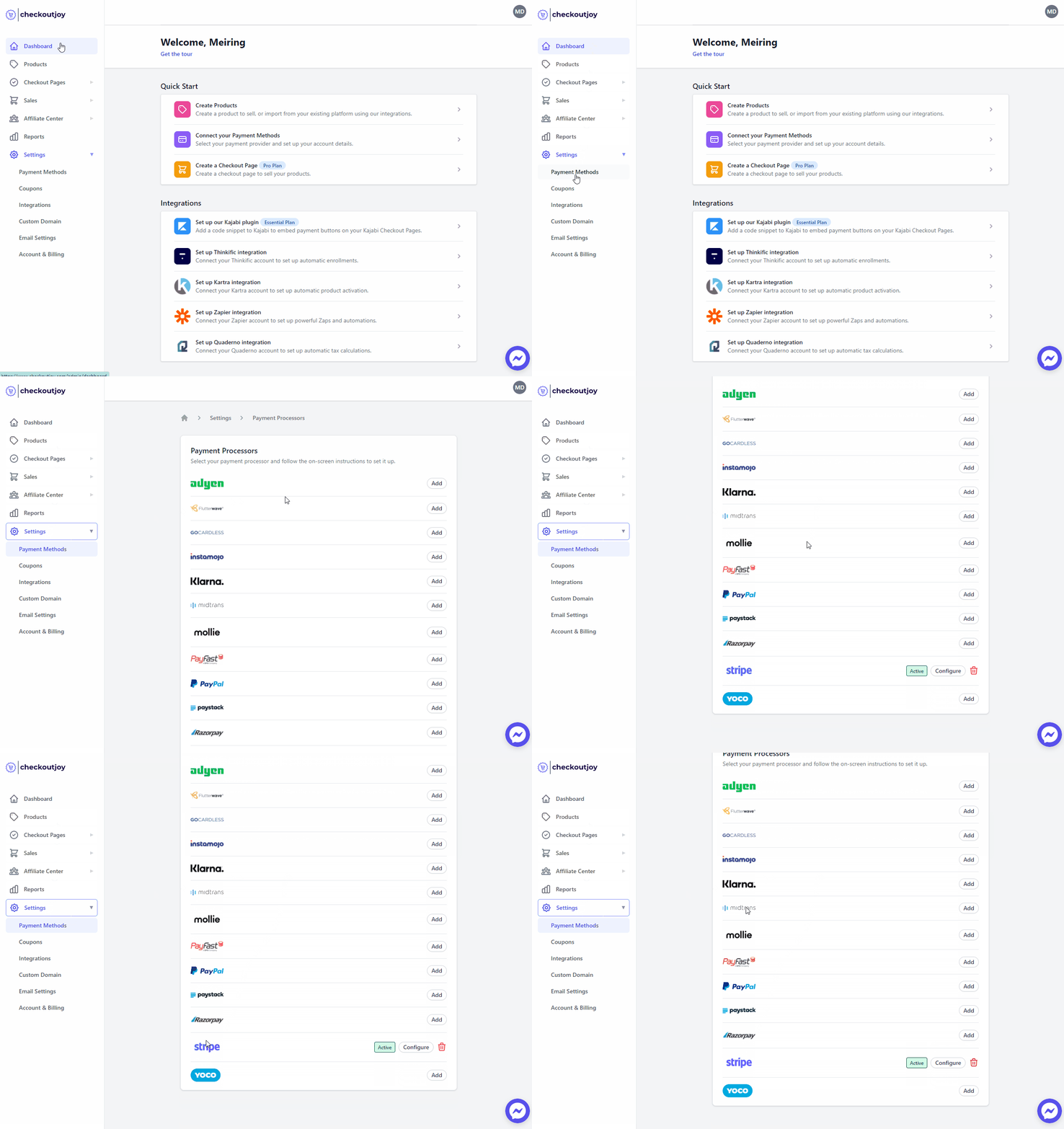
- Navigate to Settings > Payment Methods
- Select your payment processor and click on Add
Finding your Client ID and Secret
- Log into your PayPal Developer account
- Navigate to My Apps & Credentials
- Create a new App
- Give the app a unique name - e.g. CheckoutJoy Checkout Pages
- Your Client ID and Secret will be displayed on-screen. Copy these values into the form fields in CheckoutJoy.

Setting up webhook notifications
CheckoutJoy needs to be notified by PayPal of any payment events that occur when a customer pays using PayPal. These are events such as successful payment authorizations, completed orders, cancelled subscriptions etc. CheckoutJoy needs this information to record revenue and to manage your customer's access to Kajabi offers.
To do this you need to add the CheckoutJoy webhook API address to your PayPal Webhook configuration.
In your PayPal dashboard,
- Log in to your PayPal Developer account at https://developer.paypal.com/
- Navigate to Dashboard > My apps & credentials
- Select the app that was created in Finding your Client ID and Secret
- Add a webhook and fill in the form with the following details
| Setting | Value |
|---|---|
| Webhook URL | https://api.checkoutjoy.com/v1/notify?p=PayPal |
| Events | Select all events |
Subscriptions
When linking a subscription offer to a checkout page, CheckoutJoy will automatically set up the subscription in PayPal when a customer selects the PayPal payment option.
The price, billing interval and the number of billing cycles are configurable in the Offer settings.
Refunds and Cancellations
When you or a a customer cancels their subscription, CheckoutJoy will be notified by PayPal and revoke the customer's access to the offer that was purchased. The customer will receive a notification email from PayPal.
CheckoutJoy will not revoke access to Kajabi if a refund is processed. The subscription has to be cancelled.
Limitations
- Only one subscription or payment plan product per checkout - PayPal only accepts a single product when setting up a payment plan or subscription, so no multiple product carts or order bumps. You can still add a Free Trial and/or once-off Setup Fee.
Supported currencies
PayPal supports a wide list of currencies but not all of them. The most common one customers ask about is ZAR (South African Rand) — PayPal does not support ZAR. If you need to accept ZAR you'll need to add a local processor (PayFast or Paystack); PayPal can run alongside as the international option.
To accept multiple currencies on the same checkout, enable multi-currency and let CheckoutJoy detect the buyer's location, or use regional checkouts to route different geographies to different payment options.
Payouts and held funds
- Payouts to non-US banks — PayPal supports SWIFT payouts to many local banks (for example, FNB in South Africa). Your bank may apply a SWIFT fee on top of PayPal's transfer fee.
- Held funds on volume spikes — PayPal may temporarily hold a portion of new sales if your account suddenly ramps up in volume or average ticket size. This is a PayPal risk-management behaviour, not something CheckoutJoy controls. If you're planning a launch, contact PayPal in advance to set expectations.
- Buyer-favoured chargeback resolutions — PayPal disputes tend to favour the buyer. Keep a clear refund policy on your checkout and capture the buyer's consent checkboxes so you can produce them as evidence.
Frequently asked questions
Do customers need a PayPal account to pay?
No. PayPal's integration with CheckoutJoy includes credit/debit card processing, so a buyer without a PayPal account can still complete checkout by entering their card on PayPal's hosted payment page. This includes subscriptions — PayPal will tokenise the card and bill it on the recurring schedule.
Why are there two PayPal options on my checkout?
PayPal's SDK exposes two payment paths and both are rendered:
- Pay with PayPal — the buyer logs into their PayPal account and pays from their PayPal balance or linked funding source.
- Pay by card through PayPal — a guest credit-card flow that PayPal hosts; the buyer never needs a PayPal account.
CheckoutJoy doesn't implement either separately — they're both rendered by PayPal's SDK. Which one a buyer chooses is purely UX.
The guest-card flow can fail in isolation while the PayPal-account flow keeps working — this isn't a CheckoutJoy issue but a PayPal-side configuration on your account. Common causes:
- "Advanced Credit and Debit Card Payments" (PayPal's name for the guest-card capability) isn't enabled on your PayPal account.
- PayPal's fraud rules are blocking guest-card transactions in the buyer's region.
- PayPal has restricted card payments on your account due to volume/risk review.
If only the guest-card flow fails, log into your PayPal account → Account Settings → Payment preferences / Advanced settings and confirm card payments are enabled. The PayPal-account flow working is a strong signal that CheckoutJoy → PayPal is wired correctly.
A buyer sees "Expected an order ID to be passed" — what does that mean?
This error is misleading. In almost every case the underlying cause is that the checkout currency isn't supported by PayPal for that buyer/account combination (the most common example is ZAR — PayPal cannot create an order in ZAR, so no order ID is returned to pass to the next step).
To resolve:
- Confirm the currency of the product/checkout.
- If the currency isn't supported by PayPal, either enable multi-currency so the buyer can pay in USD/EUR, or route the buyer to a processor that supports their currency (PayFast/Paystack for ZAR, Razorpay for INR, etc.).
My subscription was cancelled but the customer still has access in Kajabi — why?
CheckoutJoy revokes access on subscription cancellation, not on refund. If you refund a payment in PayPal but the subscription is still active, the customer keeps access until the next failed payment or until you explicitly cancel the subscription. To revoke immediately, cancel the subscription in PayPal or from the CheckoutJoy dashboard.