Custom Domains
Learn how to set up a custom domain for your CheckoutJoy checkout pages to enhance customer experience and maintain brand consistency.
You can set up your checkout pages in CheckoutJoy to be hosted on a custom domain (typically a subdomain of your main website). This approach keeps your customers on your branded domain throughout the entire purchasing process, creating a seamless and professional checkout experience.
This feature is available on the Pro plan and above. If you are on the Essential plan, you can upgrade to Pro to access this feature.
How Custom Domains Work
When you implement a custom domain, you're creating a subdomain of your main website's domain that will be dedicated specifically to your checkout process. This approach maintains brand consistency and builds customer trust throughout the entire purchasing journey.
For example, if your primary website is:
https://www.mycourses.comYour checkout subdomain could be:
https://checkout.mycourses.comThis guide will walk you through the complete process of setting up your custom domain with CheckoutJoy, from initial configuration to implementation.
Setting Up Your Custom Domain
Step 1: Creating a Custom Domain in CheckoutJoy
You don't need to manually create a subdomain in your hosting provider (like GoDaddy or CloudFlare). Simply follow the steps below and add the two DNS entries to your DNS configuration, and the subdomain will be automatically created.
To request a new custom domain in CheckoutJoy:
- Navigate to
Settings > Custom Domainin your CheckoutJoy dashboard - Enter the subdomain you want to create (this should be a new subdomain that doesn't already exist and should not be the same as your website's primary domain)
- Wait for your DNS settings to be displayed on-screen
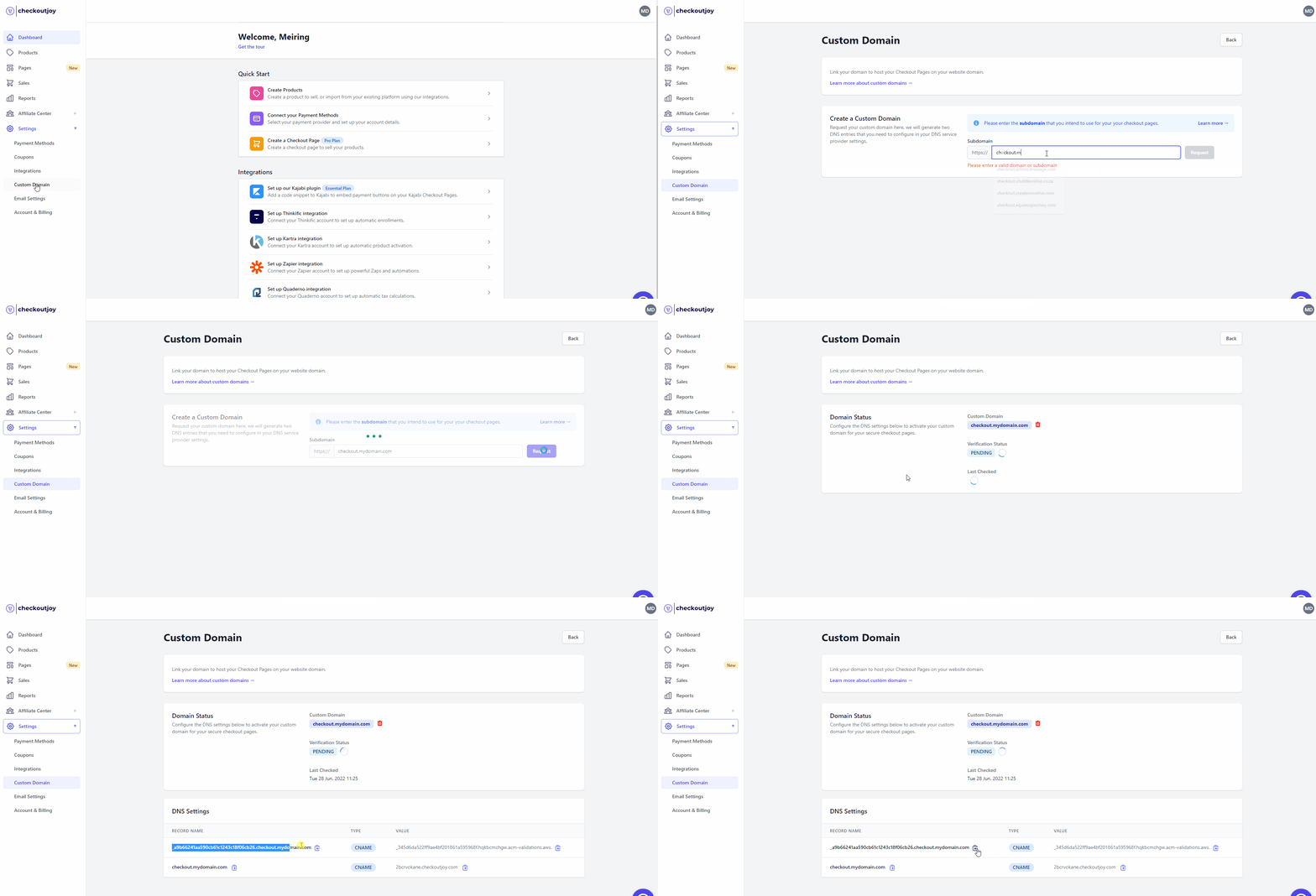
After completing these steps, CheckoutJoy will generate two important DNS records:
-
Domain Verification Record: This record proves your ownership of the domain (your ability to add this entry to your DNS settings demonstrates that you control the domain). CheckoutJoy requires this verification to generate a free SSL certificate for your new domain, ensuring secure connections for your customers.
-
Subdomain Pointer: This record directs your subdomain to CheckoutJoy's servers where your checkout pages are hosted. This establishes the actual connection between your domain and the CheckoutJoy platform.
Step 2: Adding the CNAME Entries to Your DNS Settings
After generating the DNS records in CheckoutJoy, you'll need to add these entries to your domain's DNS configuration. This step takes place outside of CheckoutJoy, in your domain management platform.
To complete this step:
- Log in to your domain management platform where you configure DNS settings
- Locate the DNS management section
- Add both CNAME records exactly as provided by CheckoutJoy
Common locations for DNS management depending on your setup include:
- Kajabi dashboard under Settings > Domains
- GoDaddy DNS Management
- CloudFlare DNS Configuration
- Afrihost Domain Control Panel
- Your web hosting provider's control panel
Important notes:
- Ensure you add these as CNAME records (not A records or other types)
- You're adding new DNS entries, so this won't affect your existing website configuration
- There's no need to modify any of your existing DNS settings
Step 3: Implementing Your Custom Domain
Once your custom domain is set up and the DNS changes have propagated, you're ready to start using your branded checkout experience. This process involves redirecting your customers to CheckoutJoy's checkout pages instead of your platform's default checkout pages.
To implement your custom domain:
- Update your call-to-action (CTA) buttons (such as
Buy Now,Subscribe, orCheckoutbuttons) on your website to point to your new CheckoutJoy checkout pages - Replace any checkout links in your marketing materials, emails, or social media with your custom domain checkout links
Most e-commerce and content platforms allow you to customize button destinations by entering an external URL. Simply update these settings to use your new custom domain checkout URL.
After implementing your custom domain, we recommend testing the complete checkout process to ensure a seamless experience for your customers. Make a test purchase to verify that everything works correctly from start to finish.
Benefits of Using a Custom Domain
By implementing a custom domain for your checkout process, you'll enjoy several advantages:
- Enhanced Brand Trust: Keeping customers on your domain throughout the entire purchase journey builds confidence and reduces abandonment
- Seamless User Experience: Customers experience a consistent branded journey without jarring domain changes
- Professional Appearance: A cohesive domain structure gives your business a more established and professional image
- Improved Conversion Rates: Reducing friction in the checkout process typically leads to higher conversion rates
DNS propagation expectations
After you add both CNAME records to your DNS host, propagation typically takes anywhere from a few minutes to 24–48 hours, depending on the TTL on the existing records and how quickly your DNS provider distributes the new entries. You can test propagation from a terminal with:
dig CNAME checkout.example.comOr use an online checker like dnschecker.org to confirm the records are visible from multiple regions.
Once DNS resolves, CheckoutJoy provisions a free SSL certificate for the subdomain automatically. This usually happens within an hour of DNS being live; if it takes longer or the dashboard still shows Pending after a day, contact support and we can trigger the certificate manually.
Subdomain vs apex (root) domain
Use a subdomain (for example checkout.example.com) rather than the apex/root domain (example.com). Subdomains use a simple CNAME record, which is straightforward to add on any DNS host. The apex domain typically requires ALIAS or ANAME records, which not all DNS providers support and which can interfere with your main website's email and other services. Subdomain setups also keep your existing website configuration untouched.
Troubleshooting
My custom-domain checkout URL returns 404
After DNS is set up and the SSL certificate is provisioned, the most common reasons a specific checkout page returns 404 are:
- The trial has expired or the subscription is unpaid. When your CheckoutJoy plan is not active, the hosted checkout pages on your custom domain return 404. Confirm in Settings → Billing that the plan is current.
- The checkout page isn't published. Draft pages are not served publicly. Open the page in the editor and confirm it's published.
- The slug on the URL doesn't match the checkout page's slug. Confirm you're using the slug shown in the page settings.
Resolve in that order — billing first, then publish state, then slug — before assuming the domain configuration is wrong.
The domain stays "Pending" even after I added the DNS records
Most often this means not all required records were added. Both CNAME entries (the verification record and the subdomain pointer) must be in place; partial records won't activate the domain. Re-check the values against what the CheckoutJoy dashboard generated — extra trailing dots, wrong record type (A vs CNAME), or typos are the usual culprits.
The single most common DNS mistake is the apex domain duplicated in the record value, because many DNS providers auto-append the apex to whatever you paste. For example, if CheckoutJoy says to point checkout.example.com at a target and you paste checkout.example.com as the value, your DNS provider may save it as checkout.example.com.example.com — invalid.
To check: open your DNS host's record editor and look at the full resolved hostname of the record. If it has .example.com appearing twice, that's the bug.
To fix:
- Delete the broken record (this is safe — it won't affect your other DNS records or your main site).
- Re-create the CNAME pasting only the subdomain label (e.g.
checkout) into the host/name field — not the fullcheckout.example.com. The DNS provider will append the apex automatically. - Inspect the domain verification TXT/CNAME (e.g.
_<verification-hash>.<subdomain>.<domain>) the same way — it's prone to the same duplication.
Propagation usually completes in a few minutes once the records are correct.
If everything looks right, the dashboard can occasionally take a moment to refresh after propagation. Hard-refresh the page; if it still shows Pending after a few hours, contact support.