Affiliate Center
How to set up your affiliates on CheckoutJoy.
How does it work?
CheckoutJoy has a full featured affiliate system which allows you to run your affiliate program using CheckoutJoy.
The CheckoutJoy affiliate system includes the following features:
- Dedicated Affiliate dashboard for your affiliates
- Conversion reports and analytics
- Email announcements sent to all your affiliates
Requirements
- You need to have a custom domain connected on CheckoutJoy
- You need to sell products using CheckoutJoy
Getting Started
To set up your affiliate program you need to complete the following steps:
- Set up a custom domain for your Affiliate Portal
- Configure your Affiliate Program Settings
- Add the Affiliate Tracking Script to your website.
Set up a custom domain for your Affiliate Portal
You need to set up a custom domain so that your Affiliate Portal can be hosted on your domain. This can be any domain or subdomain
like checkout.yourdomain.com or affiliates.yourdomain.com.
Visit the Custom Domain page for more information and steps on setting up a custom domain.
Configure your Affiliate Program Settings
Here you will configure your affiliate program, including the default rewards, tracking cookie settings and email templates.
Visit the Affiliate Center Settings to access your settings.
Affiliate Dashboard
When you connect a custom domain, your Affiliate Dashboard is automatically activated on that domain. The Affiliate Dashboard is the where your affiliates will go to get their share links and conversion stats.
For example, if your custom domain is https://checkout.yourdomain.com/, your affiliate dashboard URL will be https://checkout.yourdomain.com/affiliates/dashboard/
The following are your Affiliate Portal URLs:
| URL | Description |
|---|---|
| https://checkout.yourdomain.com/affiliates/signup | URL where affiliates can sign up for your Affiliate Program |
| https://checkout.yourdomain.com/affiliates/login | Login URL for your affiliate dashboard |
| https://checkout.yourdomain.com/affiliates/dashboard | Affiliate Dashboard URL |
Registration
Your affiliates need to register to your Affiliate Program using your registration link. A welcome email is sent to the affiliate when they register and they are automatically logged into their dashboard.
You can edit the contents of the welcome email under the Email Templates tab of the Affiliate Settings.
Rewards
When an affiliate signs up they are assigned the default commission percentage that is set for your account. You can set a default commission percentage for all your affiliates in the Rewards tab.
You can also set the commission per affiliate in the Users dashboard.
When a referred customer makes a purchase, a conversion is registered and the reward is calculated and recorded for the affiliate.
How are commission calculated
Commission for a sale is calculated using the transaction total after discount, before tax.
commission = (transactionTotal - taxTotal) * commissionPercentageIf the transaction was done in a different currency than your Affiliate Program's currency, then all totals are converted using the current exchange rates.
Share Links
Your Share Links are the links that your affiliates share with their audience. Usually this is simply the
URL of your website - e.g. https://www.yourwebsite.com, which means that any page
that a customer visits on your website with a valid referral code will be registered as a referral.
Example, the following URLs will all be registered as valid referral clicks (the affiliate code in this example is fhnfahfa)
https://www.yourwebsite.com?via=fhnfahfa
https://www.yourwebsite.com/checkout/my-checkout-page?via=fhnfahfa
https://www.yourwebsite.com/landing-1?via=fhnfahfa
You can also set up specific pages or URLs as share links. In this case, a referral click will only be registered if the specific URL is matched, and there is no root level domain configured as a share link.
Tracking when using Checkout Pages
Because tracking uses cookies to track referrals, it's important to set up your custom domain for checkout pages on the same domain as your website. This is to ensure that the tracking cookie can be accessed by the checkout page when a referred customer checks out.
The tracking cookie can only be accessed on the domain (and any subdomain) of a share link.
This generally isn't an issue when using the Checkout Widget or Thinkific Checkout Section because the checkout is then embedded on a page that is part of your website, so the tracking cookie will be available.
When your website and your checkout are on the same domain (or subdomains of the same root domain), you do not need to forward the ?via= query parameter to the checkout URL. The script sets a cookie on the root domain, and the checkout page reads it automatically from there. Trying to manually pass ?via= through every link is unnecessary and easy to get wrong.
Commission timing — the 30-day waiting period
When a referred customer completes a purchase:
- The conversion is recorded against the affiliate immediately.
- The commission balance is held for 30 days before it becomes payable.
The 30-day hold exists because CheckoutJoy honours refunds for that window. If the referred customer refunds during the hold, the commission is reversed. Once the 30 days pass and the sale is still valid, the commission becomes payable on the corresponding date of the following month — for example, a purchase on the 19th of a month becomes a payable commission on the 19th of the following month.
This is the single most common affiliate question:
"My referral signed up but I haven't been paid yet — what's wrong?"
In almost every case, the answer is the 30-day hold. Tell affiliates upfront and link them to this section.
Troubleshooting affiliate tracking
Clicks are tracked but sales aren't being attributed
The tracking link itself works (the script set the cookie), but the cookie isn't being read at checkout. Common causes:
- Tracking script not on the page where the affiliate link lands. The cookie is set when the script runs, not when the link is clicked. If the affiliate sends traffic to a landing page that doesn't load
cj-affiliate.js, the cookie is never set and no later conversion can be attributed. Confirm the script is in the<head>of the entry-page URL (not just deeper pages). - Checkout on a completely different domain. If your website is on
example.combut your checkout is onpay.someoneelse.com, the cookie set onexample.comcannot be read onpay.someoneelse.com. Move the checkout under a subdomain of your main site (for examplecheckout.example.com) and the cookie will travel. - Browser cookie restrictions or extensions. Some buyers using strict tracking-prevention browsers (Safari ITP, Brave, certain extensions) may have the cookie evicted before checkout. There's no general workaround for this; volume-wise it tends to be a small percentage.
If clicks register but sales don't, send the CheckoutJoy support team:
- The exact URL the affiliate is sharing (with
?via=intact). - The URL of your checkout page or widget host page.
- A test sale that should have been attributed.
We can inspect the tracking + cookie flow end-to-end.
Email Templates
You can customise the emails that the system sends to your affiliates.
Adding the Affiliate Tracking Script to your websites
To set up your website for affiliate tracking, you need to add the affiliate tracking script to the pages where you want to track affiliate clicks. In most cases this will be the entire website.
To enable affiliate tracking on your website, add the following line of code to the HEAD section of all the pages that where you want to track affiliate clicks.
<script async src="https://cdn.checkoutjoy.com/cj-affiliate.js"></script>Example: Adding the tracking script to Kajabi
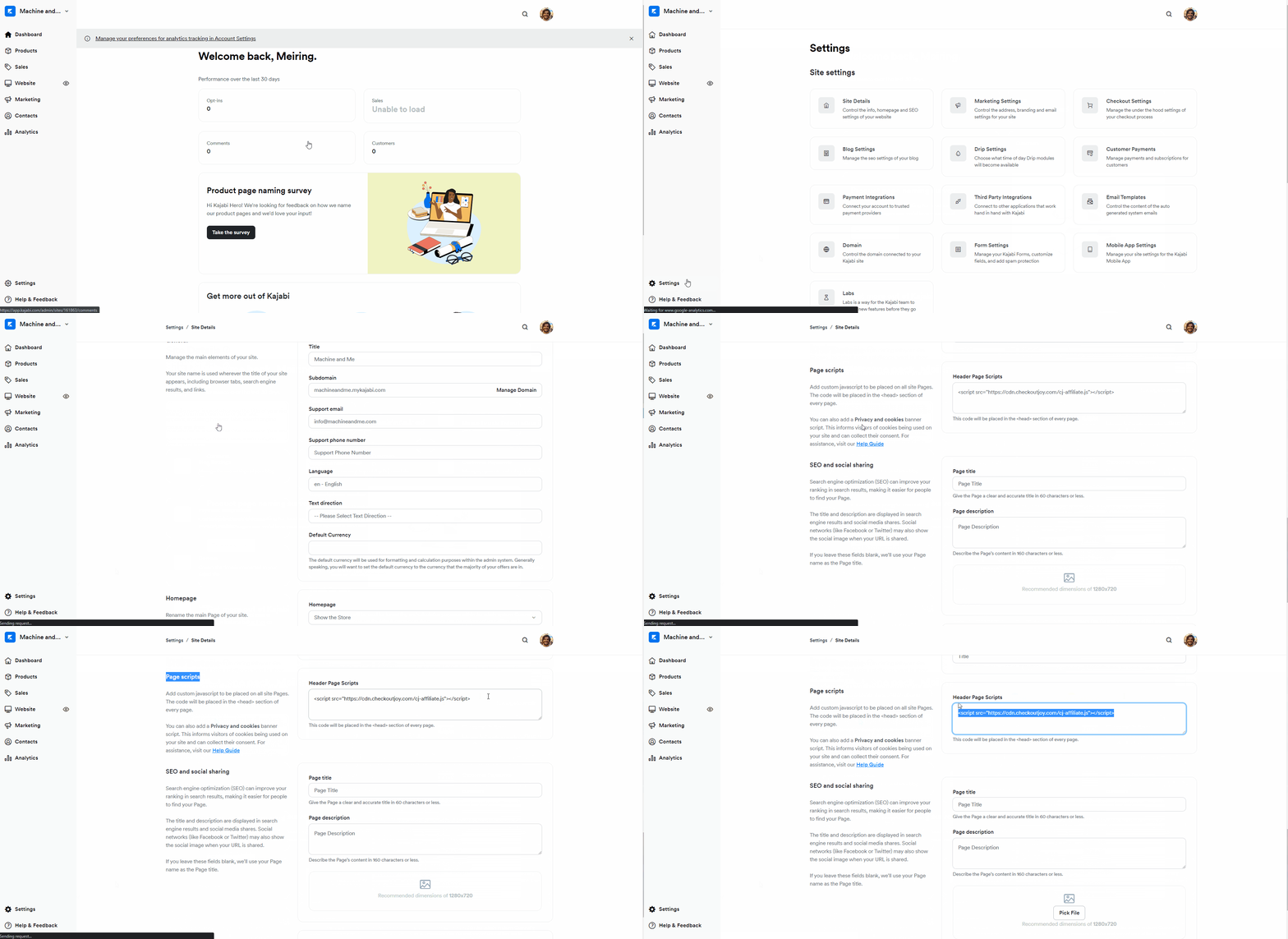
Add the affiliate tracking script to Kajabi's Page scripts section.
- Settings > Site Details > Page Scripts
Integrating 3rd-Party Affiliate Platforms
It is possible to add any 3rd party affiliate platform to CheckoutJoy like First Promoter or Post Affiliate Pro.
Most affiliate platforms work using tracking and conversion codes that need to be placed on your website. The tracking code tracks clicks of visitors sent to your site or checkout page by your affiliates, and the conversion code tracks conversions of referred customers.
The tracking code is usually placed on all your website pages, as well as your checkout pages, while the conversion code is usually placed only on your thank-you pages.
Since your checkout will happen on CheckoutJoy, you can add your tracking code snippet to any checkout page in CheckoutJoy. After checkout, your customer will be taken to your Thank-you page, and CheckoutJoy will append the transaction details to the thank-you page URL so that you can trigger your conversion tracking code on your thank-you page.
| Parameter | Description |
|---|---|
| purchaseId | The CheckoutJoy Purchase ID. This is the same an Order ID in other systems |
| productId | The unique CheckoutJoy product ID |
| productName | Human readable Product Name |
| customerEmail | Customer Email |
| customerName | Full name of the customer |
| currency | Transaction currency |
| total | Transaction total |
You can reference the values on the thank-you page by reading the search params of the URL
const urlParams = new URLSearchParams(window.location.search);
const total = urlParams.get('total');
The example snippet below is to track a sale using Post Affiliate Pro
const urlParams = new URLSearchParams(window.location.search);
var sale = PostAffTracker.createSale();
    sale.setTotalCost(urlParams.get('total'));
    sale.setOrderID(urlParams.get('purchaseId'));
    sale.setProductID(urlParams.get('productId'));