Coupons
Creating and using coupons in CheckoutJoy
Introduction
CheckoutJoy supports two types of coupons that can be used on checkout pages - a percentage based and fixed amount coupons. There are several ways to set up and configure coupons, depending on how you want to incentivise your customers.
These features include
- Limiting the number of coupons available
- Linking coupons to specific products
- Coupon code expiry
- Coupon batch creation
Percentage Based Coupons
This is a simple coupon type where a percentage of the total cart price is discounted. Where there are multiple items in a cart, the discount will be applied to all products equally, except if the coupon is linked to specific products.
If the coupon is linked to specific products, only those products will be discounted.
Fixed value coupons
These coupons have a fixed price and currency. Because of the multi-currency features, a fixed value coupon is pinned to a specific currency.
If the coupon is used on a multi-currency checkout page - where the currency is set to the customer's local currency, or the customer can change the currency - then the value of the coupon will automatically be adjusted to the selected currency of the cart.
A fixed value coupon is applied to all valid items in the cart, for example if a cart contains 2 products and the coupon value is more than the total value of the first item, then the item is discounted completely and the remainder of the balance is discounted on the second item.
Linking products and coupons
Coupons can be set up to apply only to specific products. When this feature is enabled, only the selected products in the list of allowed products can be discounted using the coupon.
Automatically applying coupons to checkouts
You can automatically apply a coupon code to a checkout session by adding the coupon code as a query parameter to the checkout page URL.
A query parameter is a simple key-value separated by a = in the URL. It is separated from the main URL path with a ?.
So you would add something like ?coupon=MYCODE to the end of your checkout page URL.
For example, if your checkout page URL is
https://checkout.mycourses.com/flagship-course
then you can set up an automatic coupon link by adding ?coupon=YOURCOUPONCODE to the URL.
Your checkout URL will therefore be:
https://checkout.mycourses.com/flagship-course?coupon=MYCODE20If the coupon code is valid, the discount will automatically be applied to the cart when the page loads.
Usage Report
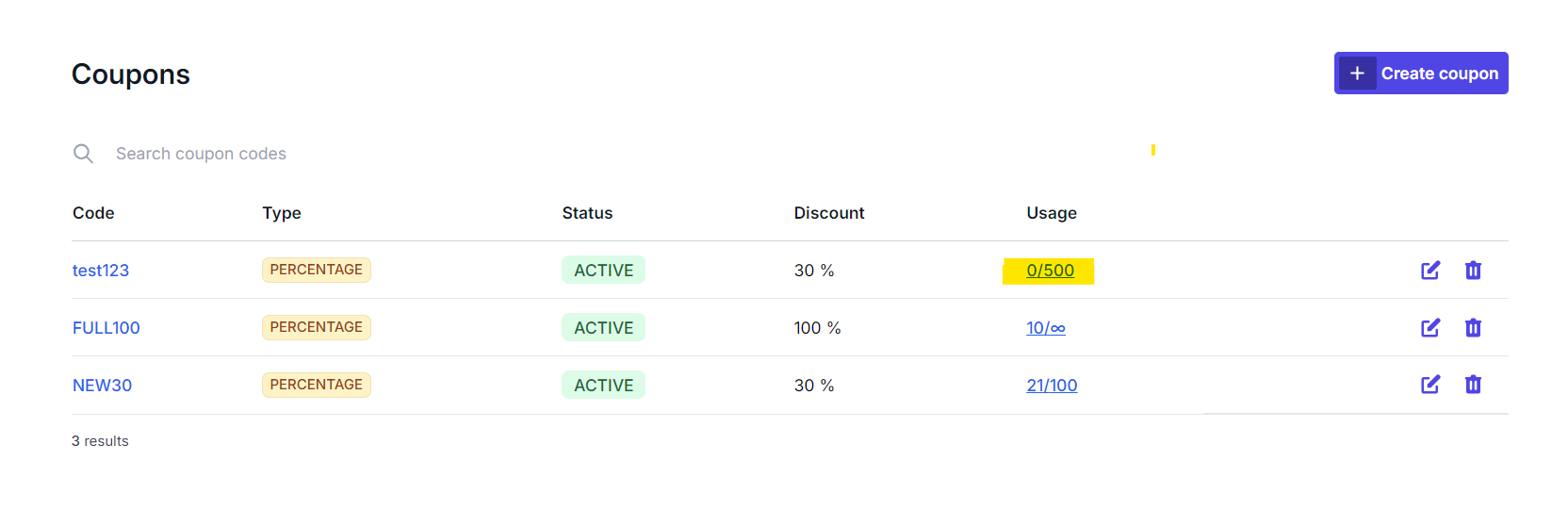
To see who used the coupon code, search for the coupon code and click on the Usage link.
Coupon validity rules
A coupon applies to a sale only when all of the following are true:
- The coupon is active (not expired, not deactivated).
- The current time is within the coupon's valid date range (start date / end date, if set).
- The coupon hasn't exceeded its usage limit (if a cap is set).
- The product in the cart is in the coupon's allowed products list (or the coupon is set to apply to all products).
- The cart currency matches the coupon's currency (for fixed-value coupons) — or CheckoutJoy converts using the current exchange rate.
If any of these aren't met, the coupon silently won't apply at checkout. The buyer just sees no discount.
Preventing coupon abuse
A few practical safeguards:
- Set a usage limit. Cap how many times a code can be redeemed in total — this prevents a leaked code from being shared en masse.
- Set a per-customer cap. Stop a single buyer from using the same code repeatedly across multiple email addresses (if you've enabled per-customer tracking).
- Scope coupons to specific products. A 50%-off code for one product shouldn't accidentally discount an unrelated higher-priced product.
- Deactivate test/preview coupons. It's easy to leave a 100%-off "free for testing" coupon active and forget about it.
- Be deliberate about 100%-off coupons. They complete the order successfully — which means a buyer with a 100%-off code lands on your thank-you page and receives access exactly like a paying customer. If you suspect "free enrollments" you can't explain, the first thing to check is whether a 100% coupon is active that you forgot about.
- Be deliberate about URL-embedded coupons. A checkout URL with
?coupon=CODEautomatically applies that coupon on page load. Don't share these URLs in places where they can leak (open social posts, public Slack channels, public help articles).
Frequently asked questions
My customer says they applied a coupon but I don't see it on the sale
Check the payment status of the sale. Coupons applied to a session that the buyer didn't complete won't show on any sale because there is no sale. Look at the abandoned checkouts list instead.
Can I display multiple available coupon codes on the checkout?
Not currently — the coupon field is a single input. Customers enter one code at a time. If you want to advertise active discounts, communicate the codes in your marketing copy or auto-apply via the URL parameter.
Can I create a coupon that discounts only the first payment of a subscription?
First-payment-only coupon types are not supported as a built-in feature — the semantics are inconsistent across the 20+ payment processors CheckoutJoy supports.
The reliable workaround on processors that support both setup fees and free trials on subscriptions (PayPal is the most common):
- Set the subscription setup fee to the discounted first-payment amount.
- Enable a free trial equal to your billing period (e.g. 30 days for a monthly subscription).
The buyer is charged the discounted setup fee on day 1, then the trial holds them off the recurring schedule by one period. After the trial ends, the normal recurring price kicks in. Effect: the buyer effectively paid the discounted price for the first cycle and the full price thereafter.
For processors that don't support the setup-fee + trial combination, first-payment-only discounts may simply not be possible — consider whether a flat-discount coupon or a separate promotional product fits better.
The "Coupon Code" column in my Purchase Report is blank
Known limitation in the current Purchase Report export — the Coupon Code column doesn't always populate, and the in-dashboard coupon "uses" counter doesn't always increment after a redemption.
Workarounds:
- For per-coupon usage: go to the coupon record in the Coupons section and click Usage. That view is accurate per-coupon.
- For monthly cross-coupon reports: contact support for a manual export (reference, customer, completed_at, coupon code, status). The underlying order data is correct; it's only the Purchase Report column rendering that's affected.
My coupon's currency symbol shows wrong on the checkout
Known display issue where a coupon configured in one currency can render with the wrong currency symbol on the checkout (e.g. a R2,600 ZAR coupon showing with $). The discount amount is calculated correctly; only the symbol is mis-rendered. Confirm the discount math against the order total — if the math is right, this is the symbol bug and the buyer is being charged correctly.