Kartra
Connect Kartra with CheckoutJoy to accept payments via PayFast, Razorpay, Paystack and 15+ more processors.
Our Kartra integration allows you to sell your Kartra products from our hosted checkout pages, using any of our supported payment gateways and payment options.
- Easy setup and full control over the payment options available to your customers
Automatic management of member access to your Kartra courses and materials
Fully secure checkout experience for your customers
Reporting and notifications on payments received
How does it work
Kartra uses tags to allow powerful automations to be executed on leads and products. CheckoutJoy uses this concept to grant access to memberships and products when a customer completes a purchase through our checkout pages.
In Kartra, your setup will include creating a Tag, and setting up an automation that grants access to a product when a lead is assigned this specific tag.
In CheckoutJoy, you will set up a checkout page which is also linked to the tag that you created in Kartra.
When a customer completes a checkout on your checkout page, CheckoutJoy will create the lead in Kartra (or update if it already exists) and assign the tag to the lead. This will kick-off the Kartra automation to grant the lead access to your membership, and any other automation that is linked to that membership.
And that is it! You have now completed a sale for your Kartra membership using a payment option that your customers know and trust!
Setup Guide
This guide assumes that you already have a product set up in Kartra.
The following steps must be performed in your Kartra account
Step 1 - Create a Tag
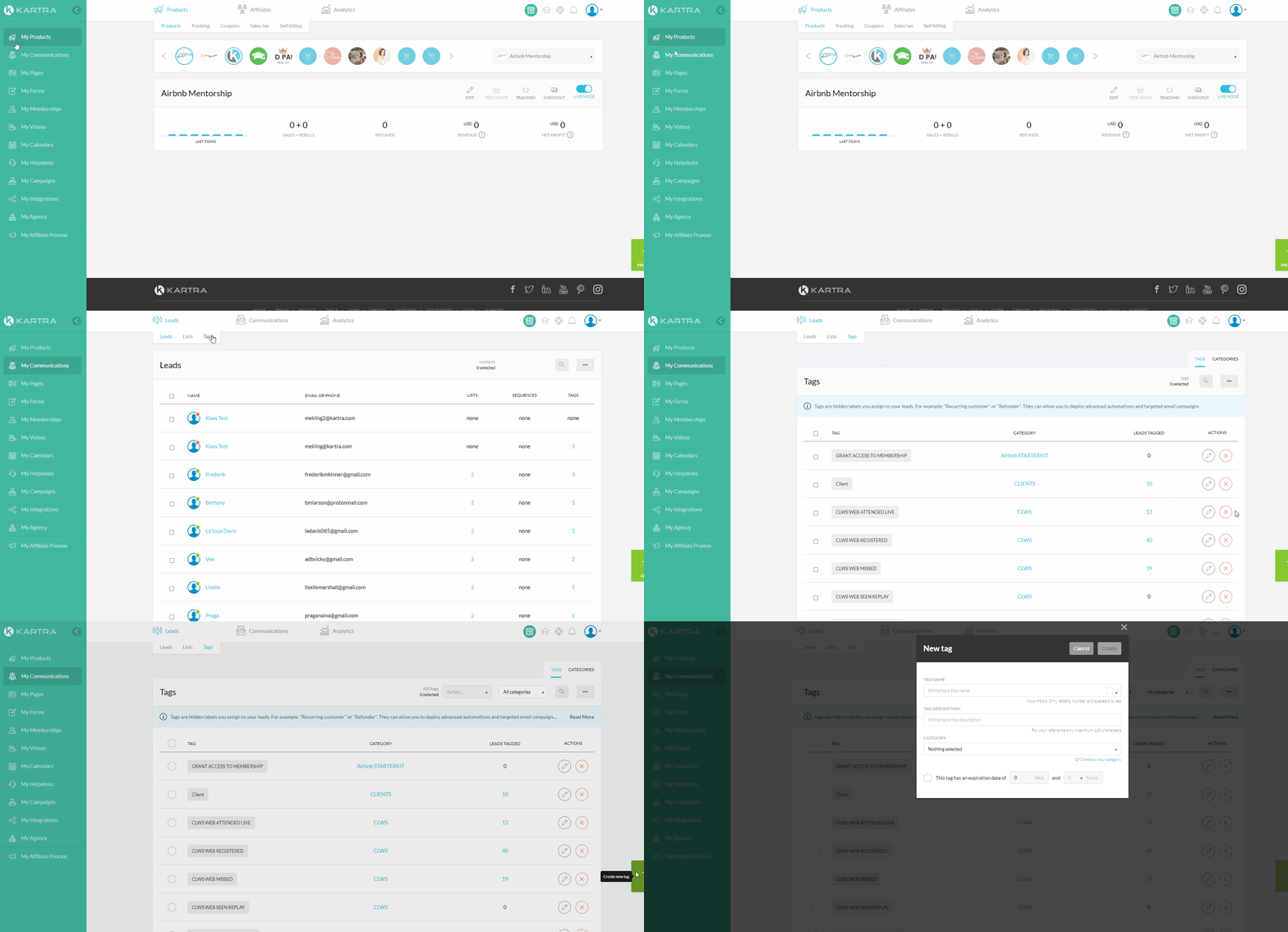
In your Kartra dashboard, navigate to My Communications and select Tags from the top navigation.
Enter a unique Tag name and select the appropriate tag category.
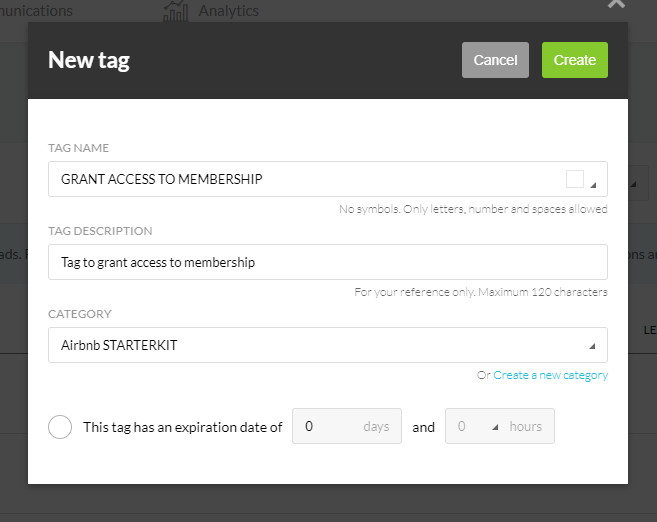
In the next step we'll set up an automation to give access to a product when a Lead is assigned this tag.
Step 2 - Set up an automation
Now set up an automation to grant access to a membership if a lead is assigned that tag. Remember to click the Add before saving.
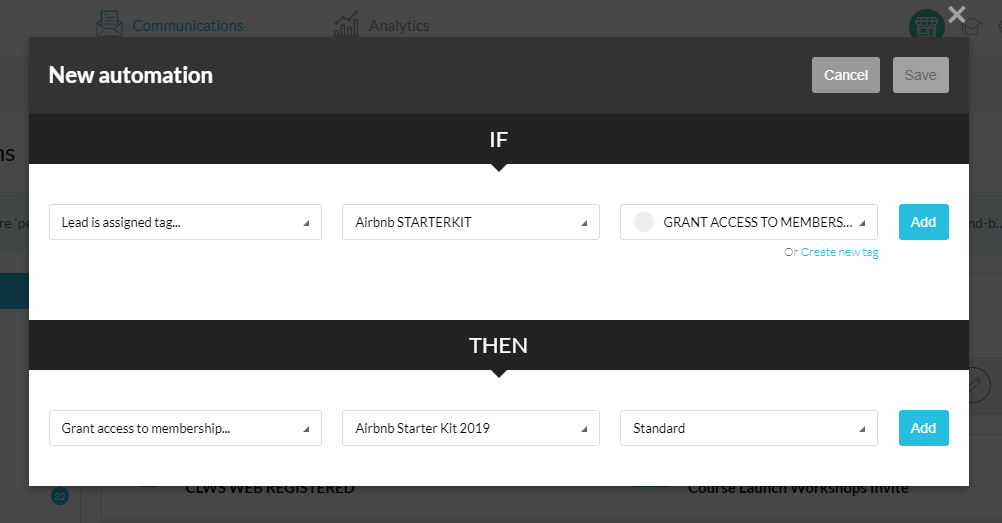
That's it for your Kartra setup! Now move over to CheckoutJoy to set up your checkout page.
Step 3 - Connect your Kartra account in CheckoutJoy
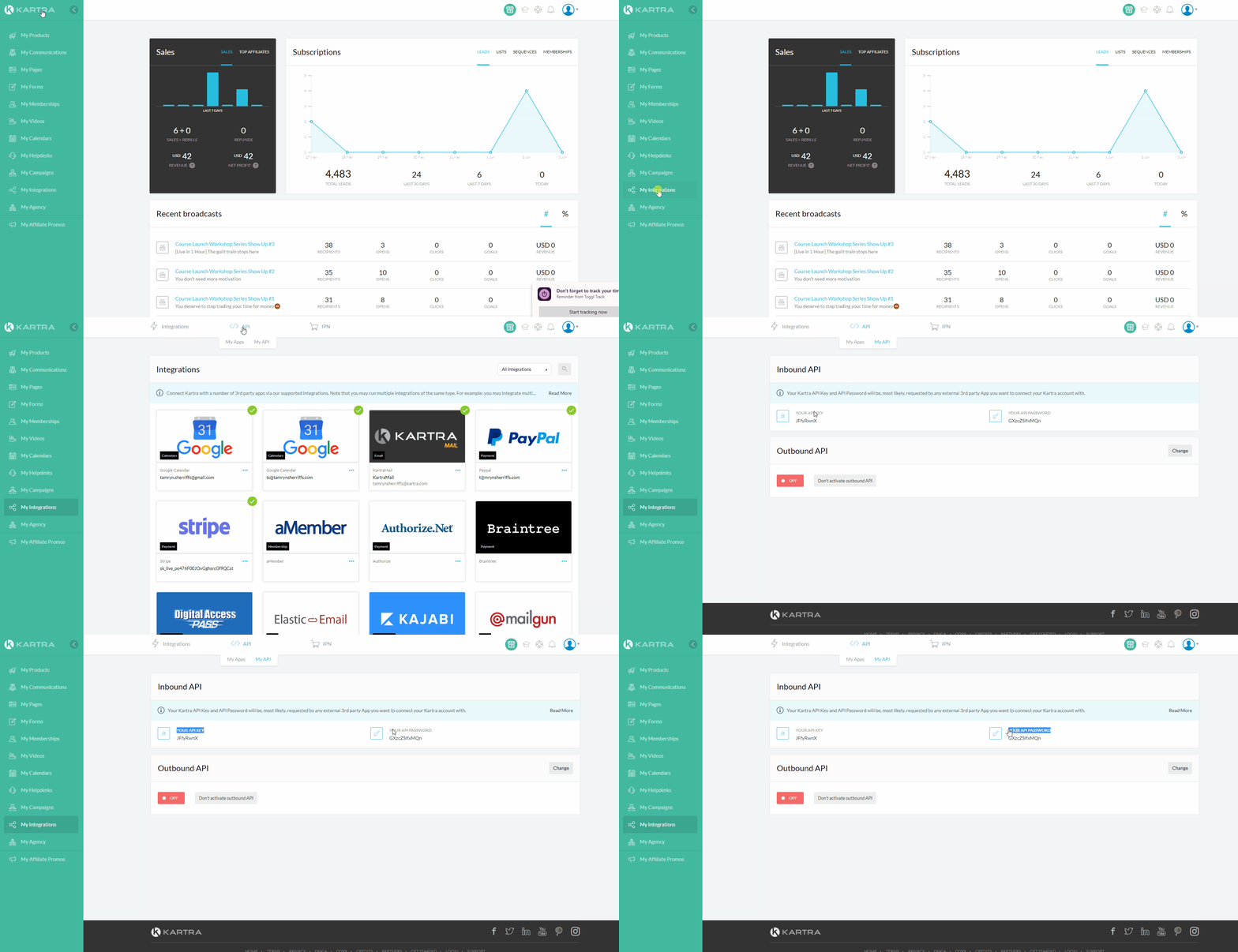
You need to add your Kartra account API Key and API Password to CheckoutJoy to enable the integration.
You can find your API Key and API Password by navigating to My Integrations > API > My API.
Step 4 - Create your Product in CheckoutJoy and link your Kartra product
A Product in CheckoutJoy is used to set pricing and currency information for your Kartra products.
You need an Offer in CheckoutJoy for every product that you want to sell in Kartra.
To create an offer in CheckoutJoy, navigate to Products and select the Create Product option.
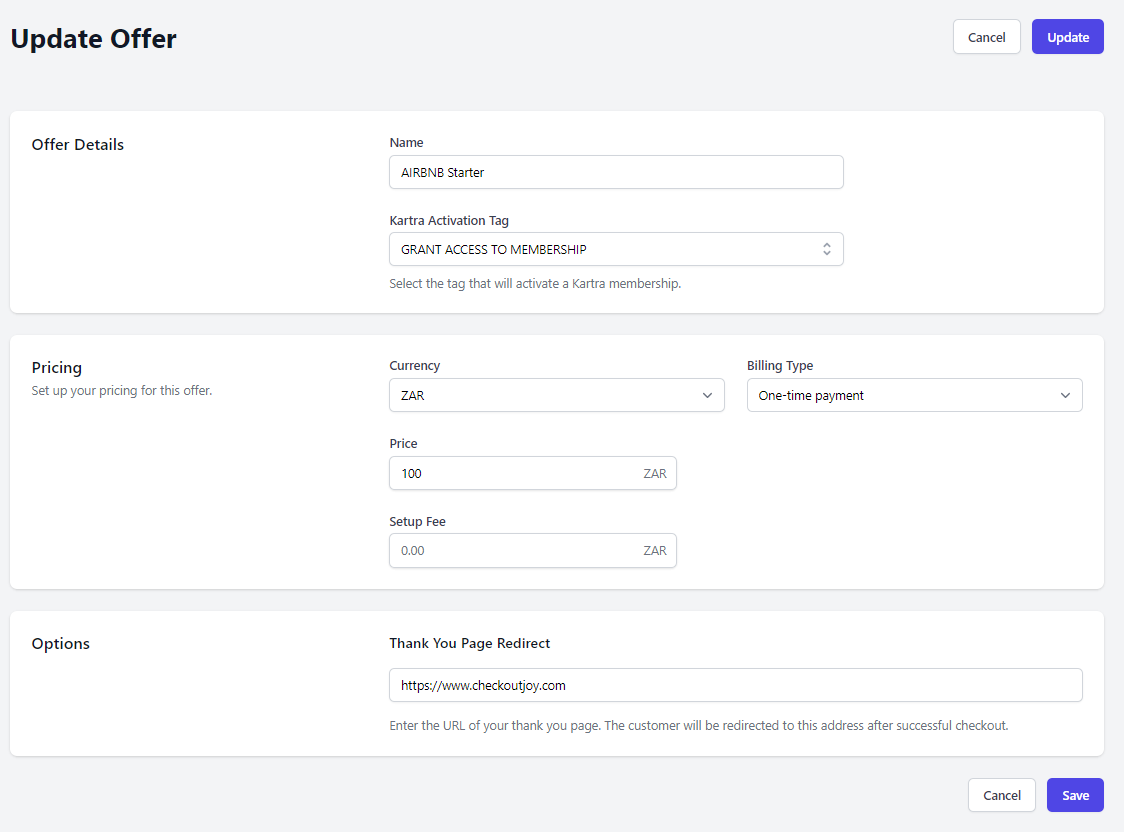
Complete the form to create your offer.
| Setting | Value |
|---|---|
| Name | A unique name to identify your offer, this doesn't have to match the name of the product in Kartra |
| Tag | Select the tag that you configured the automation for in Kartra to activate your product |
| Pricing | Configure your product pricing and currency options |
| Thank you page redirect | Configure the page where customers are taken after completing a purchase |
The following steps must be performed in your CheckoutJoy account
Step 5 - Create a Checkout Page
To sell Kartra products you need to set up a custom checkout page in CheckoutJoy. From your Kartra website your customers are taken to the checkout page (you can customize the domain and URL of the page) for checkout, and after checkout they will be redirected to a thank-you page that you configure.
- Navigate to Pages in your CheckoutJoy dashboard and create a new page using on of the prebuilt templates.
- Once the Page Editor opens, navigate to Settings > Checkout Settings and select the product that you want to sell on the page. The dropdown contains all the products you've configured in CheckoutJoy.
- Go to Sections on the left-hand menu to open the checkout page content editor. Make the required changes to your page content.
- Save and Publish your page to make the changes live.
If you want to edit the URL of the checkout page, go to Settings > Page Settings and change the URL of the page. You can also connect a custom domain to link your pages to a subdomain of your website - e.g. https://checkout.yourdomain.com/.
How orders flow through Kartra
When a checkout completes, CheckoutJoy:
- Marks the order as Completed (this only happens when the payment processor sends the "completed" event — pending orders skip the next steps until they're reconciled).
- Calls Kartra's API to create (or update) the lead with the buyer's email and billing details.
- Assigns the tag you configured on the CheckoutJoy product.
- Kartra's automation rule sees the tag and grants the membership / runs whatever else is wired to that tag.
If anything in this chain is broken — most often Kartra API credentials, a missing tag, or the underlying order being stuck in Pending — the grant doesn't run.
Frequently asked questions
A buyer paid but the tag was never applied. How do I fix it?
Walk the chain in order:
- Is the order in "Completed" status in CheckoutJoy? If it's Pending, the processor didn't send the "payment completed" webhook to CheckoutJoy. Fix the webhook delivery in your processor dashboard — see the step-by-step webhook diagnostic in Troubleshooting. Automations only fire on completed orders.
- Are your Kartra API credentials still valid? If you regenerated keys in Kartra, update them in CheckoutJoy under Settings → Integrations → Kartra.
- Does the tag still exist in Kartra and is the automation still active? If you deleted or renamed the tag, the automation won't trigger.
- Is the tag name on the CheckoutJoy product the exact tag from Kartra? Tags are matched by name — typos break the link.
Once the underlying issue is fixed, support can replay the grants for any orders that completed during the outage — you don't have to add buyers to Kartra manually.
My Kartra integration stopped working — what should I check?
If tag assignment has broken broadly (not just on a single order), the underlying connection to Kartra needs attention. You don't need to re-do your setup or re-enter credentials — once the connection is restored, your integration resumes with your existing configuration.
- Orders that completed during the outage are replayed automatically — tags get applied retroactively and grants run for every successful purchase in the gap. Buyers don't need to be manually added.
- If you're running a launch and Kartra is the critical path for fulfillment, do a real test purchase first so you'd catch any issue ahead of time.
Contact support if the integration doesn't recover on its own.
Does CheckoutJoy revoke the Kartra tag when a subscription is cancelled?
CheckoutJoy revokes access on subscription cancellation. The mechanics in Kartra depend on how you've wired the automation — if your Kartra automation grants access on tag-applied and revokes on tag-removed, CheckoutJoy will remove the tag when the subscription cancels. Check your Kartra automation configuration to confirm the "tag removed" trigger is set up to revoke membership.